Skip to content
DocsPostsHow do I create and schedule a post?

How do I create and schedule a post?

Updated Jul 2026·1 min

Write once, tune the text per channel, and choose Publish now, Schedule later, or Propose for review. One post, every channel.
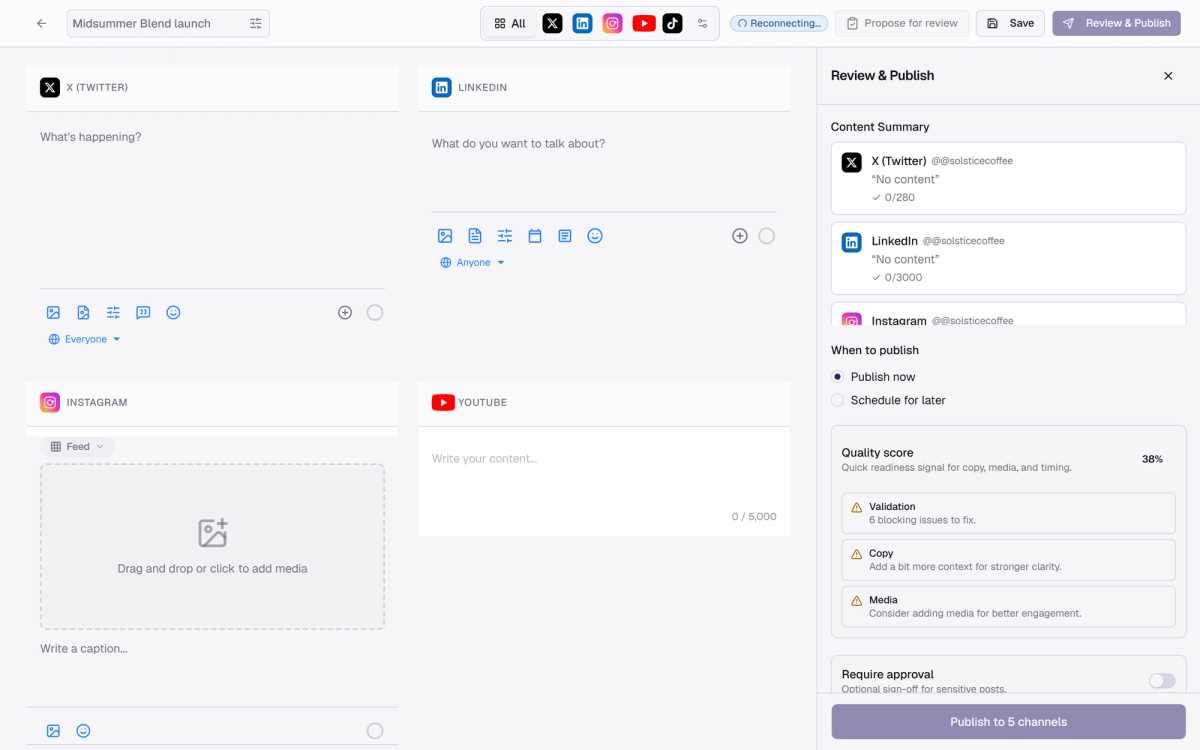
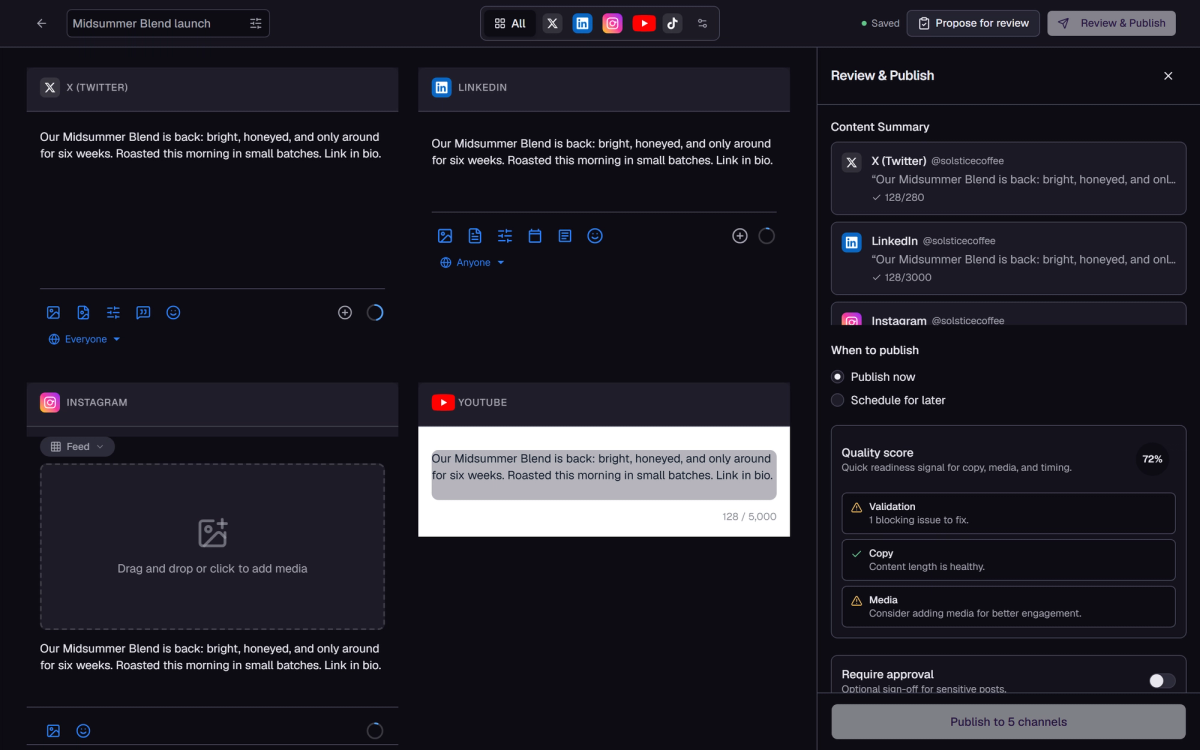
The composer with per-channel editors, a quality score, and the Review & Publish panel.The composer with per-channel editors, a quality score, and the Review & Publish panel.

Open the composer

Select Create post, from Home or from Posts. Give the post a title so your team can find it later.

Write per channel

Each connected channel gets its own editor, so the X version can be short while LinkedIn gets the full story. Character counters show every limit while you type.

Check the quality score

The composer scores your draft as you write and points at what would make it stronger, like missing media or weak hooks.

Pick a path

Publish now sends it. Schedule later takes a date and time. Propose for review sends it to teammates first, and you can require approval before anything goes out.

Confirm it happened

The post moves to Scheduled or Published, and failures show on Home under Needs attention with a retry path.

FAQ

Composer questions

Can I edit a scheduled post?
Yes, until it starts publishing. Open it from any view and edit; the schedule stays unless you change it.
What if a channel disconnects before the scheduled time?
The post returns to Draft and your daily post allowance is refunded. Nothing half-publishes silently.
What happens at the daily post limit?
Publishing is blocked with an error until the counter resets at midnight UTC: 10 posts per day on Creator, 100 on Business, unlimited on Enterprise.
A channel failed while others published. Now what?
The post shows as published with a warning. Fix the cause, then retry: only the failed channels are attempted again.
Can someone outside my workspace approve a post?
Yes. Reviewers can respond from an emailed link without a Medal Social account.