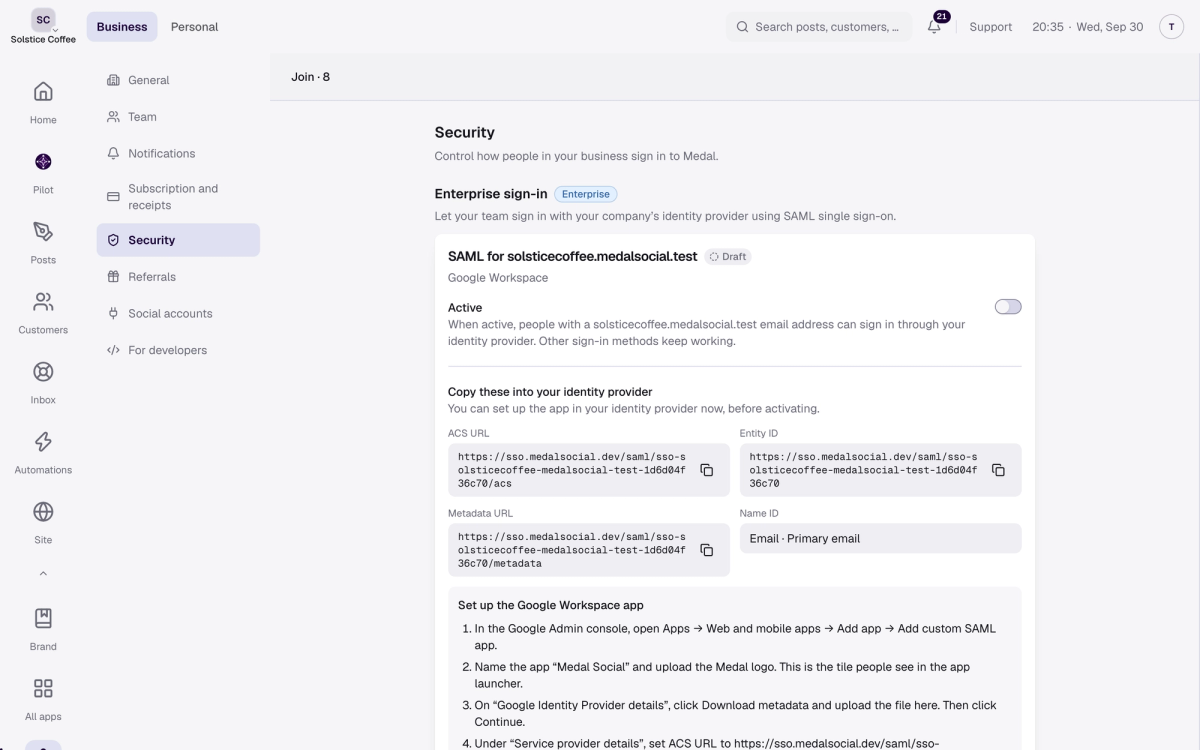
Connect Medal to Google Workspace, Microsoft Entra ID or Okta with SAML, so your team signs in with their work account and can open Medal from the app launcher. It lives in Settings → Security and takes about 20 minutes, plus the time your identity provider needs to roll the app out.
Settings → Security with SAML active. Values shown come from our test environment; copy yours from your own Security page.
On this page
Before you start
You need all of these. If one is missing, the Security page tells you which instead of showing the setup.
An Enterprise plan with enterprise sign-in switched on. Medal switches it on for your business when you ask; until then the page says "Enterprise sign-in isn’t switched on".
The owner or admin role in your Medal business. Members and guests see "Only owners and admins can manage enterprise sign-in."
Your company’s email domain verified with a DNS TXT record, on the Team page under Who can join. A domain verified by email only doesn’t count.
Admin access to your identity provider: the Google Admin console, the Microsoft Entra admin center, or the Okta Admin Console.
The people who’ll sign in are already members of your Medal business. Invite them from Team, or connect Directory sync. Medal doesn’t create accounts at sign-in yet.
Choose your identity provider
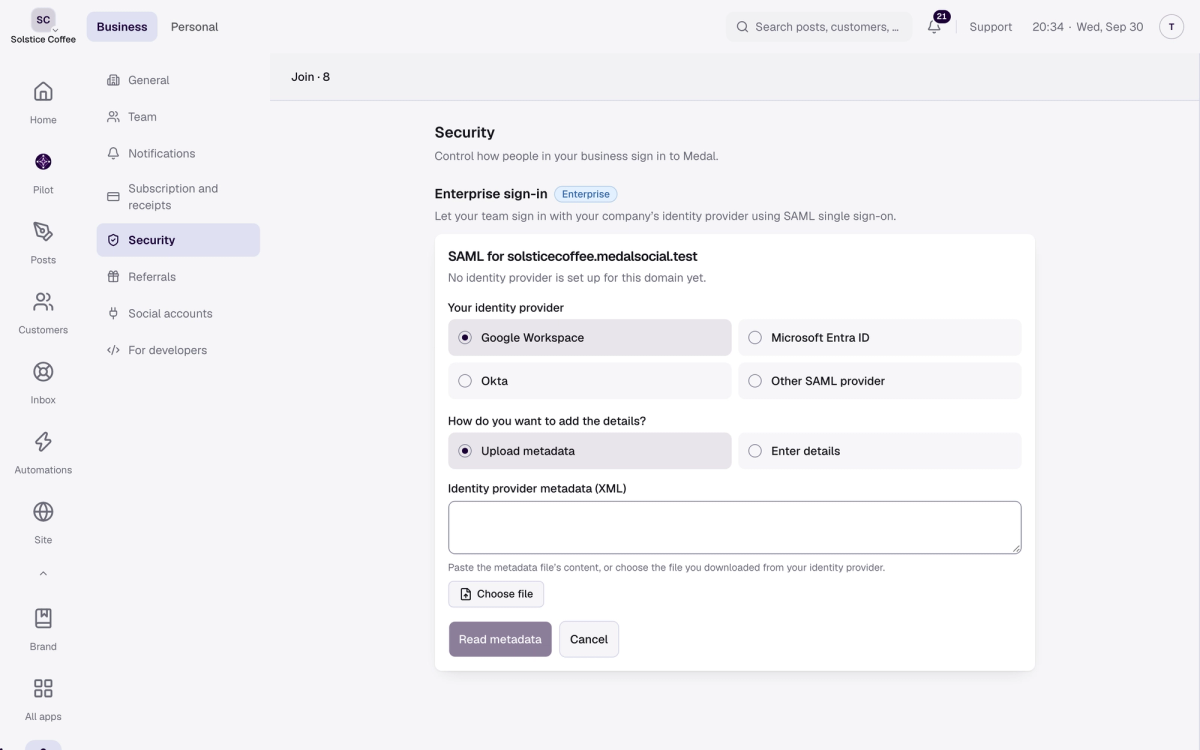
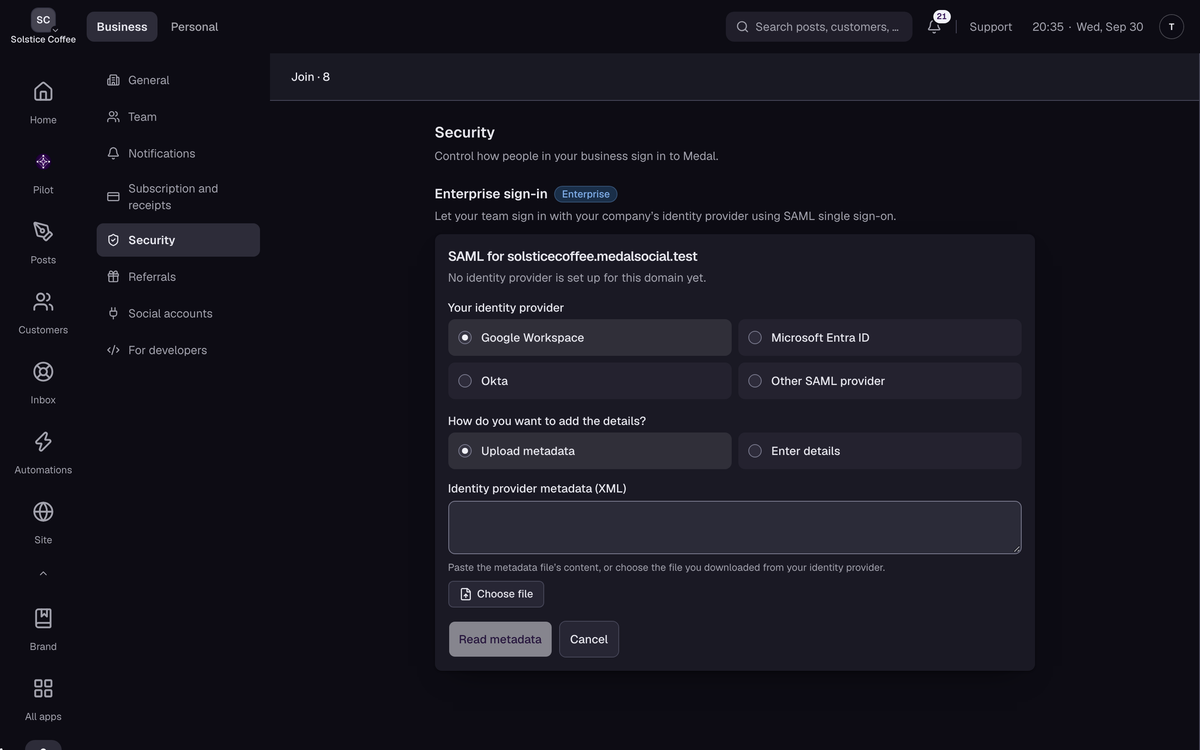
On the Security page, find SAML for your domain and hit Set up SAML. Pick Google Workspace, Microsoft Entra ID, Okta or Other SAML provider. Your choice sets the defaults for the two options further down.
Add a custom SAML app in Google
In the Google Admin console, open Apps → Web and mobile apps → Add app → Add custom SAML app. Name it Medal Social and upload the Medal logo. That’s the tile people see in the app launcher.
Upload Google’s metadata to Medal
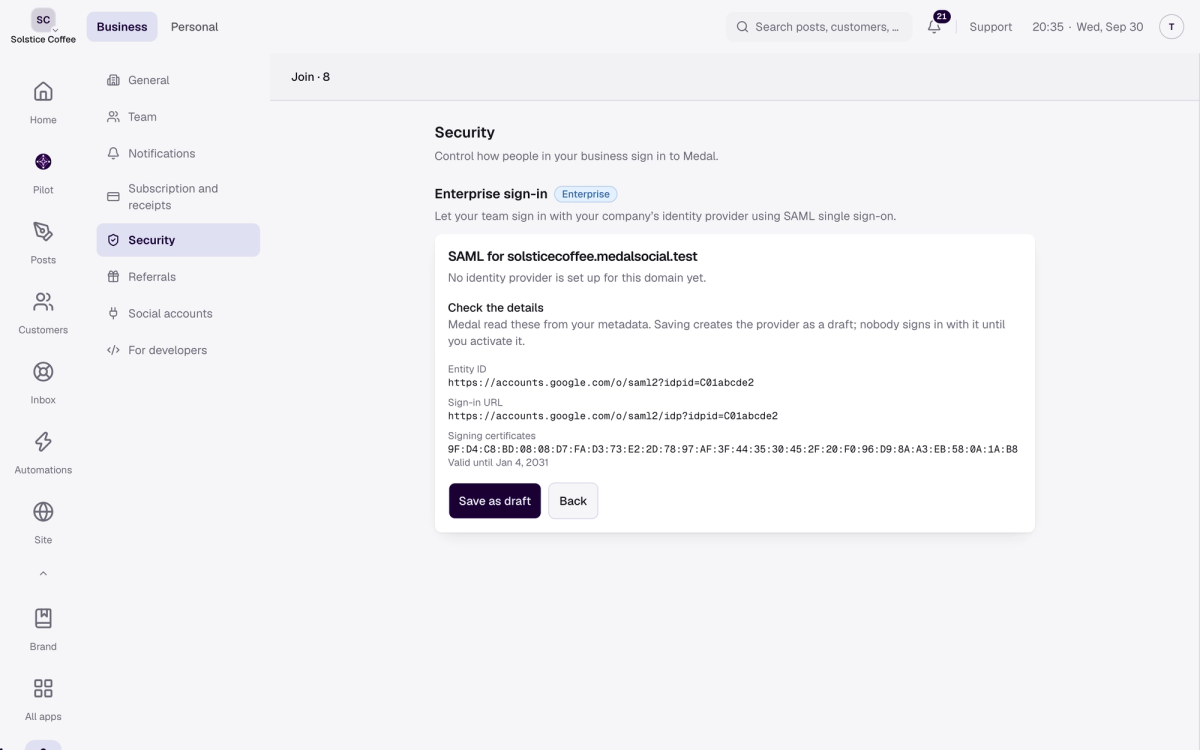
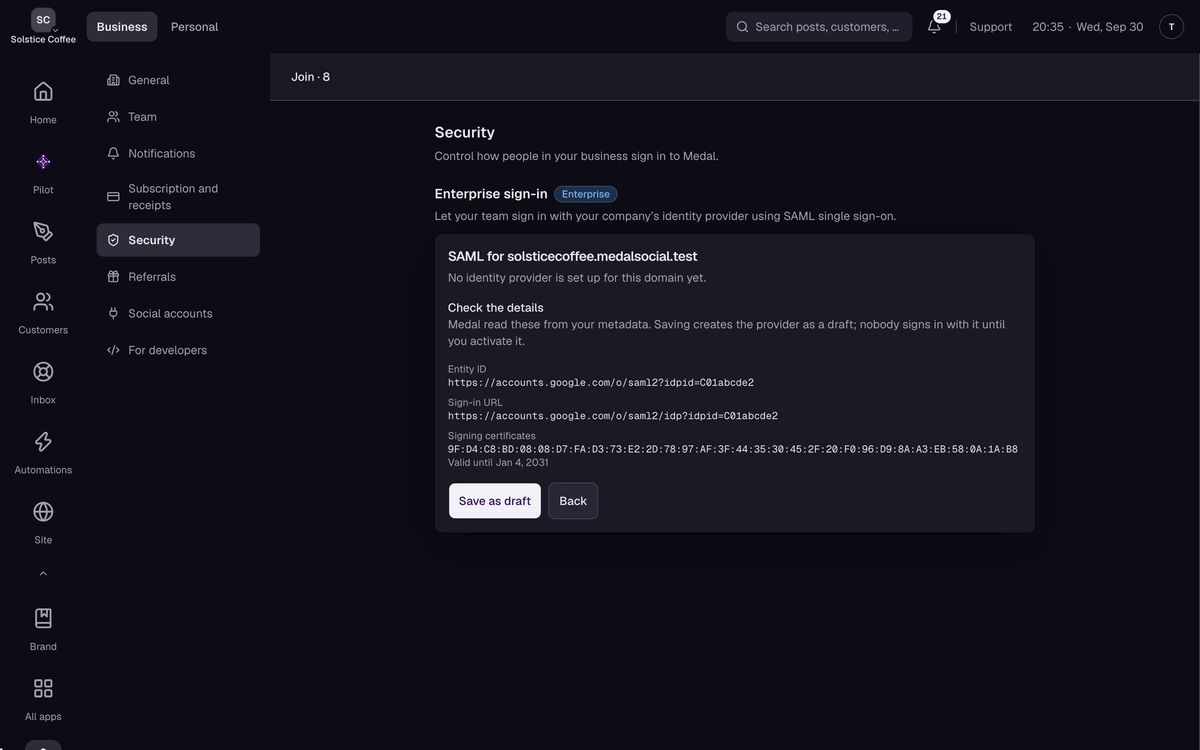
On Google Identity Provider details, click Download metadata. In Medal, keep Upload metadata selected, choose the file and hit Read metadata. Check the entity ID, sign-in URL and certificate, then hit Save as draft.
Give Google Medal’s details
Saving the draft shows the values to copy, each with its own copy button. Back in Google, click Continue and fill in Service provider details like this:
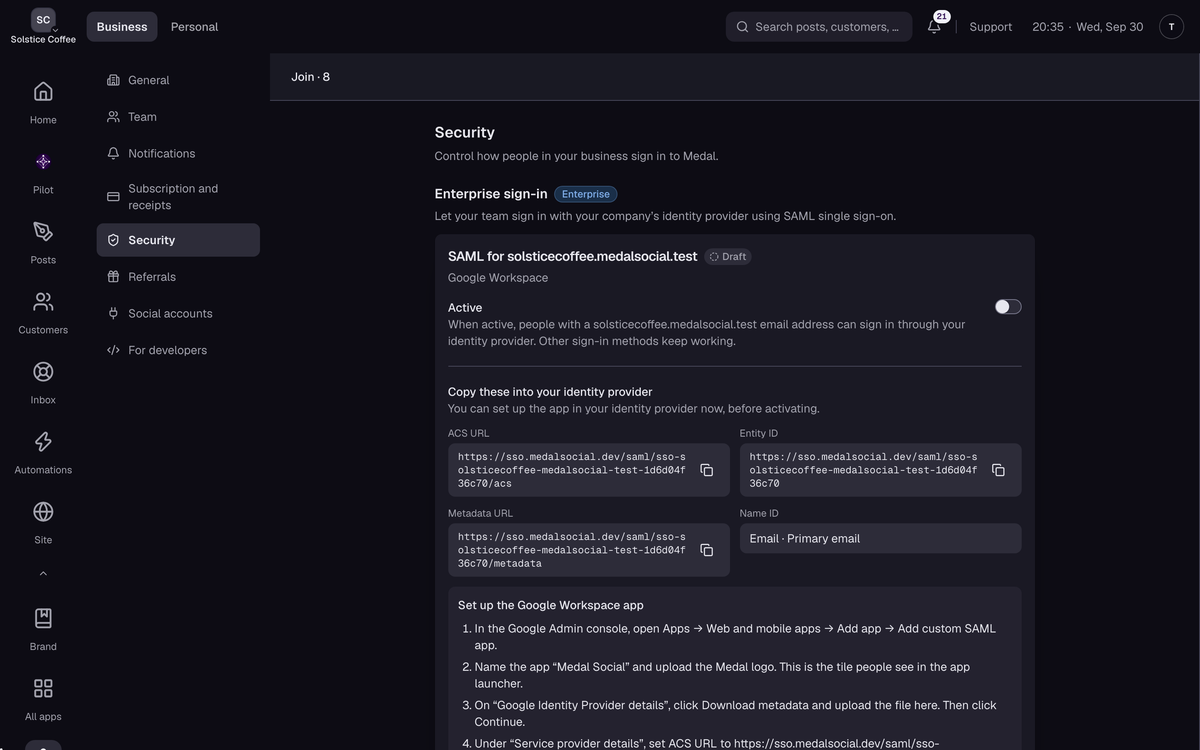
A draft provider: everything you copy into your identity provider is ready before you activate. Values shown come from our test environment; copy yours from your own Security page.
ACS URL: Medal’s ACS URL, which looks like https://sso.medalsocial.com/saml/sso-yourcompany-com-1a2b3c4d5e6f/acs.
Entity ID: Medal’s Entity ID, the same address without /acs.
Start URL: leave it empty. Medal ignores it.
Signed response: tick it.
Name ID format: EMAIL.
Name ID: Basic Information › Primary email.
Attribute mapping: none needed. Click Finish.
Turn the app on for your people
In Google, open the app’s User access and turn it ON for the organisational units or groups that should use Medal. Start with a small group. Google says changes can take up to 24 hours, though it’s usually quicker.
Activate the provider
Back on Medal’s Security page, switch Active on. People with an email address at your domain can now sign in through your identity provider. Every other sign-in method keeps working.
Test the sign-in three ways
Use an account that’s already a member of your Medal business. Each test should end in Medal, signed in.
In the Google Admin console, open the app and use Test SAML login.
Open the Google app launcher (the grid of dots) and pick Medal Social.
On the Medal login page, enter a work email and hit Sign in with email. Medal sends you to Google instead of emailing a code.
Microsoft Entra ID instead
Choose Microsoft Entra ID in Medal, then in the Microsoft Entra admin center:
Open Enterprise applications → New application → Create your own application, and pick the non-gallery option.
Under Single sign-on → SAML, Basic SAML Configuration: set Identifier (Entity ID) to Medal’s Entity ID and Reply URL (Assertion Consumer Service URL) to Medal’s ACS URL. Leave Sign on URL and Relay State empty.
Under Attributes & Claims, set Unique User Identifier (Name ID) to user.mail. The default, the user principal name, often isn’t the email address.
Keep the signing option on Sign SAML assertion. Sign SAML response and assertion signs twice, and Medal refuses that.
Under SAML Certificates, download Federation Metadata XML and upload it in Medal.
Under Users and groups, assign the people who should use Medal.
For a Medal tile in My Apps, turn on Allow sign-in from the app launcher in Medal. It’s off by default for Entra.
Okta instead
Choose Okta in Medal, then in the Okta Admin Console:
Open Applications → Create App Integration → SAML 2.0.
Set Single sign-on URL to Medal’s ACS URL and Audience URI (SP Entity ID) to Medal’s Entity ID. Leave Default RelayState empty.
Set Name ID format to EmailAddress and Application username to Email.
Under Show Advanced Settings, make sure only one of Response and Assertion Signature is Signed. Okta usually signs both, and Medal refuses a response signed twice. We suggest Response Signed, Assertion Signature Unsigned, and Require a signed response turned on in Medal.
Finish, then on the Sign On tab open the metadata URL and save or copy the XML. Upload or paste it in Medal.
On the Assignments tab, assign the people who should use Medal.
For a Medal tile on the Okta dashboard, turn on Allow sign-in from the app launcher in Medal. It’s off by default for Okta.
Any other SAML 2.0 provider
Choose Other SAML provider. Create a SAML 2.0 app with Medal’s ACS URL and Entity ID, send the user’s email address as the Name ID, and sign with RSA-SHA256. Then upload its metadata, or pick Enter details and type in the sign-in URL, entity ID and certificate. Medal needs the HTTP-Redirect sign-in URL.
The two options and their defaults
Both switches sit under Options on the provider card, and you can change them at any time.
Allow sign-in from the app launcher: lets people open Medal from the Google apps grid, Microsoft My Apps or the Okta dashboard. On by default for Google Workspace, off for the others.
Require a signed response: accepts only responses signed as a whole. On by default for Google Workspace, which matches Google’s Signed response box. Off for the others, because Entra signs only the assertion by default.
Email comes from: the Name ID, unless you set an email attribute under Edit details.
What a click on the tile does
Medal checks the identity provider’s signature, then starts an ordinary sign-in for that person. The address bar flicks through a few quick redirects and they land in Medal, signed in. Medal ignores Start URL and RelayState, so the tile always opens Medal’s start page.
Rotate a signing certificate
A provider holds two signing certificates, so you can swap without downtime: add the new one, switch your identity provider to it, then remove the old one.
In Google, open the app → Manage certificates → Add certificate, and download the new certificate. Entra and Okta have their own new-certificate option.
In Medal, under Signing certificates, hit Add certificate and paste it. Sign-ins that already work aren’t affected.
Switch your identity provider to the new certificate.
Remove the old certificate in Medal. Sign-ins signed with it stop at once.
Medal emails owners and admins 30 days and again 7 days before sign-in would stop working, and the certificate shows an Expires badge. An expired certificate is never accepted.
Medal accepts RSA certificates of 2048 bits or more signed with SHA-256 or stronger. SHA-1 and elliptic-curve (EC) certificates are refused.
Remove the provider
Read this first: sign-in through your identity provider stops at once, while people keep every other way to sign in. If you set SAML up again later, Medal creates a new ACS URL and Entity ID, and you’ll have to update the app in your identity provider with them. To go ahead, hit Remove provider and confirm.
"Your account isn’t set up in this business yet"
The full message reads "You signed in successfully, but your account isn’t set up in this business yet. Ask your administrator to invite you." The identity provider vouched for the person, but they aren’t a member of your Medal business. Invite them from Team, or let Directory sync add them, and they can sign in right away.
"Single sign-on could not be completed"
Medal shows this one message for every setup problem and keeps the reason private, so work through these checks in order:
The provider is Active, and the ACS URL and Entity ID in your identity provider match the Security page exactly. They change if the provider was removed and set up again.
The email the identity provider sends is at your verified domain. Entra’s user principal name or a Google secondary domain won’t match.
The signatures fit: with Require a signed response on, Google needs Signed response ticked. Entra and Okta must not sign both the response and the assertion.
The certificate in Medal is the one your identity provider signs with today, and it hasn’t expired.
For tile clicks, Allow sign-in from the app launcher is on.
Still stuck? Contact Medal support with the time it happened and the person’s email address.
FAQ
SAML questions
Does turning on SAML stop people signing in with email codes or Google?
No. Every other sign-in method keeps working while SAML is active. Medal can’t require single sign-on for a business yet.
Do I have to add everyone to Medal before they can use SAML?
Yes. Medal doesn’t create accounts at sign-in yet, so each person must already be a member of your business. Invite them from Team, or connect Directory sync to keep membership in step with Google Workspace or Entra.
Why do I need to tick Signed response in Google?
The Google Workspace preset turns on Require a signed response, and Google signs the whole response only when that box is ticked. If you’d rather leave it unticked, turn off Require a signed response under Options in Medal.
I removed our provider and added it back. Why did sign-in stop working?
A provider set up again gets a new ACS URL and Entity ID. Copy the new values from the Security page into the app in your identity provider and it works again.
Why can’t my team see the Medal tile?
Check that the app’s User access in Google is ON for their organisational unit or group (it can take up to 24 hours), that the provider is Active, and that Allow sign-in from the app launcher is on.
What happens when our signing certificate expires?
Owners and admins get an email 30 days and 7 days before. Once a certificate expires Medal stops accepting it, so SAML sign-in fails until you add the new certificate. Other sign-in methods keep working.
Can we use SAML on more than one domain?
Yes. Each DNS-verified domain gets its own SAML provider, set up and activated separately. A domain can use single sign-on in only one business.
Is SAML available on the Creator or Business plan?
No. Single sign-on is part of Enterprise, and Medal switches it on for your business when you ask.